OKTA SCIM Documentation #
The Blacksmith OKTA SCIM integration supports the following features:
- Create users
- Update user attributes
- Deactivate users
- Group push
To enable this integration please follow the steps below.
#
Step 1: Create an API Key for SCIM in Blacksmith #
- Reach the customer support team if you want SCIM API 2.0 to be enabled for your organization at support@blacksmithinfosec.com
- Once enabled, browse to https://web.blacksmithinfosec.com/dashboard/company/security
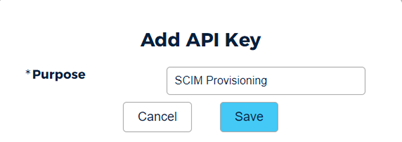
- Click +New Key
- Enter ‘SCIM Provisioning’ in the Purpose
- Click Save
- Copy the Client Key
- Provide your OKTA administrator with the Authorization Key

Step 2: Register Your SCIM Application in Okta #
- Add the Blacksmith InfoSec app to your OKTA Tenant
- Navigate to OKTA admin dash navigation and click on “Applications”.
- Click “Browse App Catalog”.
- Search for “Blacksmith InfoSec” application.
- Click “add integration”.
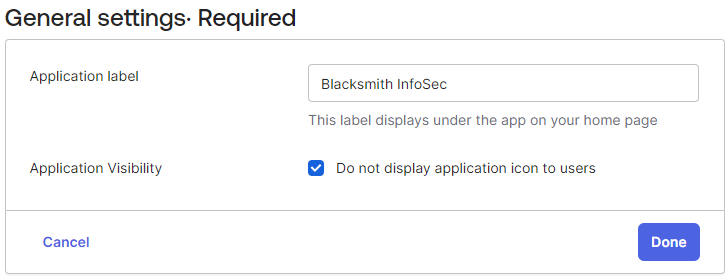
- Set the Application label to “Blacksmith InfoSec”.
- Set Application Visibility to Do not display application icon to users

- Click Done
- Configure Provisioning for Blacksmith InfoSec
- Click the Provisioning tab.
- In the main panel click Configure API Integration.
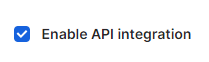
- Select the Enable API Integration checkbox.

- Enter the SCIM authorization token provided by the Blacksmith InfoSec admin into the “API Token” field.
- Test the credentials by clicking Test API Credentials, which attempts to connect to Okta. If there’s an error, check the credentials entered above.
- Click Save to complete the API integration.
- Enable Provisioning:
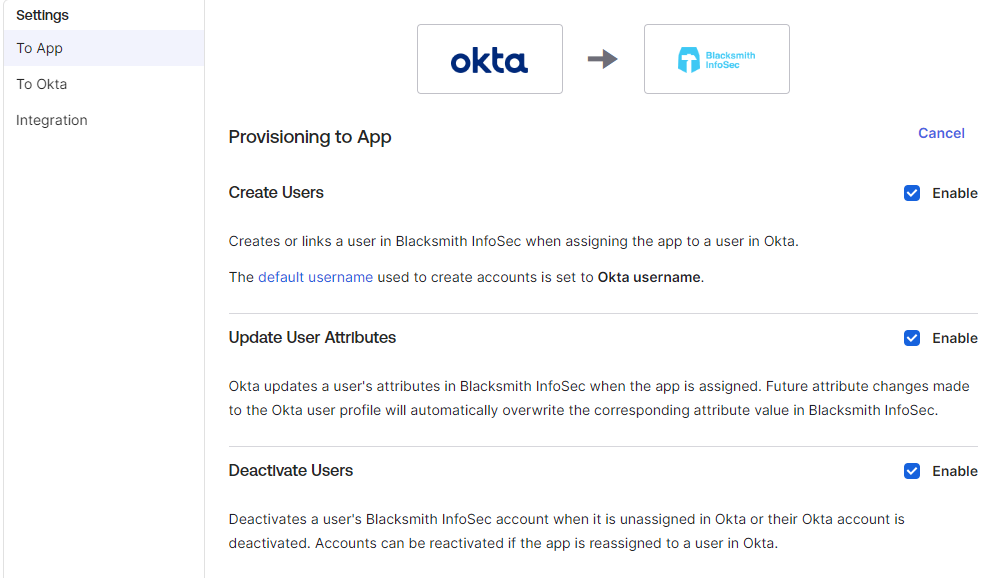
- Click Edit on the To App settings
- Select Create Users
- Select Update User Attributes
- Select Deactivate Users

- Click Save
- Assign Users and Groups
- We recommend using Group Assignments for applications as they are easier to manage.
- Ensure that the right users and groups in your org are assigned to the Blacksmith InfoSec app.
- For instructions on how to assign the app integration to individual users and groups, see the Assign app integrations article in the Okta product documentation.
- Assign Push Groups to the app
- For instructions on how to assign Push Groups to the app integration see the Enable Group Push guide in the Okta Product documentation